Navigator
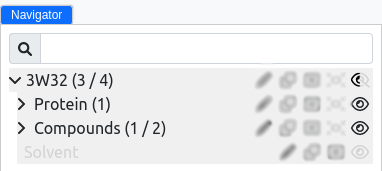
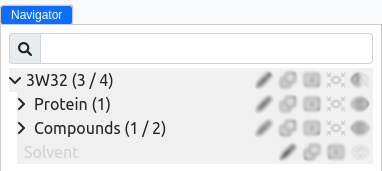
The Navigator is an integral feature of MolModa. It gives you control over the molecules and regions in your project and acts as a dynamic inventory, listing every loaded or computed entity—proteins, ligands, docking poses, regions, and any other structures produced by computational steps.
The panel is organized to give a clear view of the project's molecular components, making it straightforward to identify and select items for further action.
Per-item features
Toggle the visibility of a structure or region so the viewer stays focused on the elements of interest.
Center the view on the selected structure or region. Useful for examining detailed interactions or specific configurations.
Remove a structure or region from the project (guided tour). This action is irreversible; if you only want to declutter the viewer, use Hide/Show instead.

Molecule operations
The Edit menu provides additional operations on Navigator entries:
Rename Molecule(guided tour) — change the name shown in the tree.Clone Molecule(guided tour) — duplicate one or more selected molecules.Merge Molecules(guided tour) — combine the selected molecules into a single new entry.Copy to Clipboard/Paste from Clipboard(guided tour) — move molecules between projects or sessions.Copy SMILES to Clipboard(guided tour) — copy the SMILES strings of the selected compounds.
If you make a mistake, Edit Undo (guided tour) will reverse the last action.
Selection
Several plugins under Edit Selection make it easier to manage large projects:
Select All(guided tour),Select Visible(guided tour),Select Invisible(guided tour)Invert Selection(guided tour)Clear Selection(guided tour)
Tree navigation
The View menu includes shortcuts for working through the tree:
Toggle Up(guided tour) /Toggle Down(guided tour) — move visibility and focus to the molecule above or below the current one. Handy for stepping through docking poses or a compound library.Toggle Visible— quickly show or hide the current selection.Expand All(guided tour) /Collapse All(guided tour) — change how deeply the tree is unfolded.
Visualizations
For repeatable styling, View Visualizations New Visualization lets you define a visualization by specifying selection criteria, representation, and color, then apply it across the project.
Best practices
- Regularly review: Keep the Navigator organized by reviewing the structures and regions you have loaded, ensuring only relevant entities are present.
- Use Hide/Show: Focus on specific areas of interest without permanently removing structures from the project.
- Caution with deletion: Deletion is permanent. When in doubt, hide instead.